How to sell on WooCommerce: from a WordPress site to your first sale
Von Oleksandr Shaniuk · Gründer von Sellura · Aktualisiert 1. November 2026
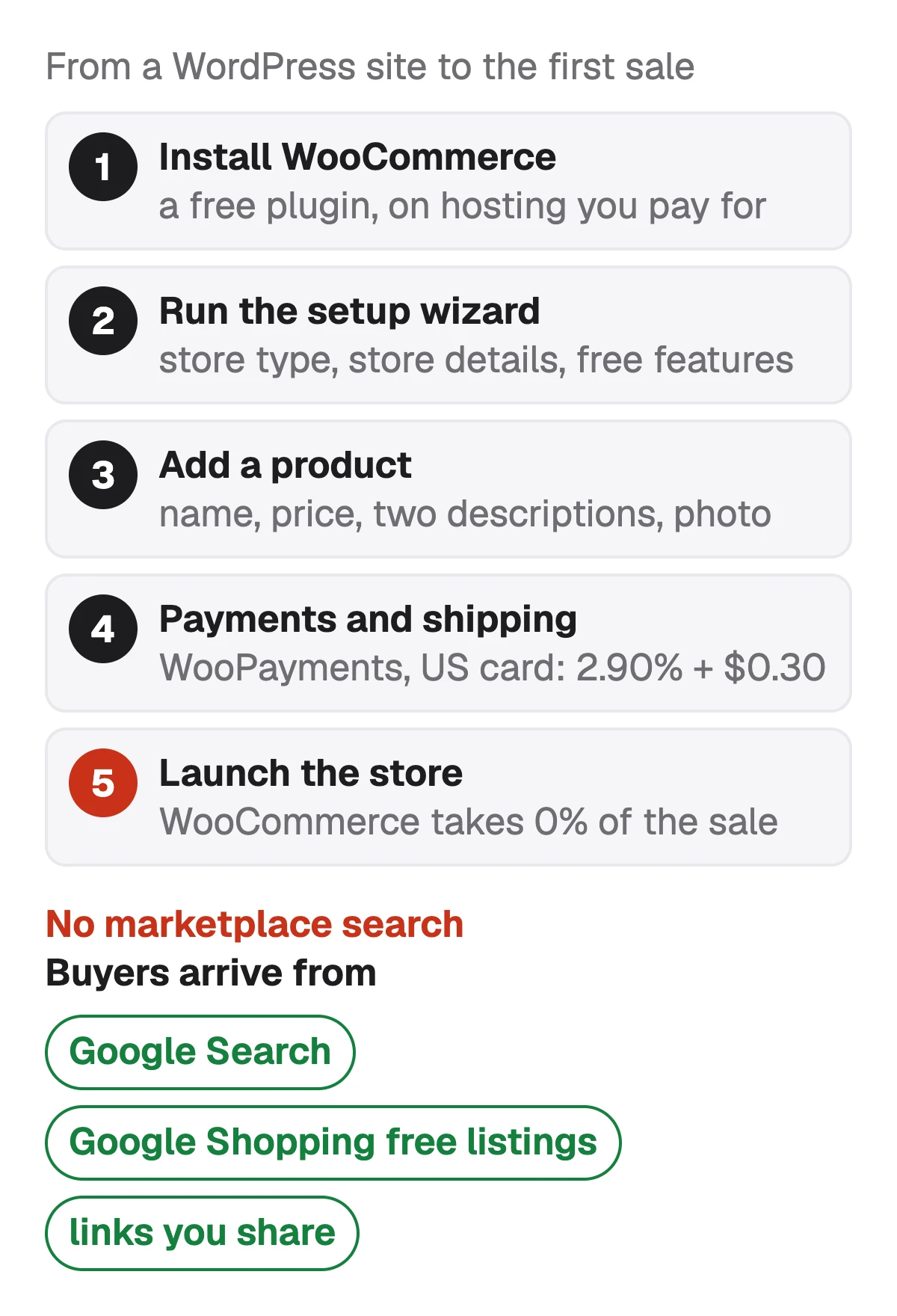
To sell on WooCommerce, you install it on your own WordPress site, run its setup, add a product, turn on a payment method and launch the store. WooCommerce is a free plugin, not a marketplace. Its pricing page lists a $0 platform fee and 0% revenue share, and puts hosting at $25 to $350 a month for most stores (read 1 November 2026). Card payments cost what your payment provider charges: on WooPayments, WooCommerce's own, a US card payment costs 2.90% + $0.30.
- WooCommerce platform fee
- $0
- and 0% revenue share
- WooPayments, US card
- 2.90% + $0.30
- per payment, before surcharges
- Hosting, most stores
- $25–$350
- a month, WooCommerce's own range
- Marketplace search
- None
- buyers come from Google and your links
The bigger difference from Etsy or eBay is that there is no WooCommerce search for shoppers to browse. Buyers reach your products from Google, from Google Shopping if you connect your store, and from links you share yourself. Below: what you need first, the setup in order, what it costs, how to write the first product page so Google can read it, and where buyers come from.
What you need before you start
WooCommerce runs inside WordPress, so the store is a website you own: your domain, your hosting, your theme. That is the trade. Nobody takes a share of the sale, and nobody brings you shoppers either.
Have these ready before you open the setup, and the first product goes live the same day:
- A WordPress site on hosting you pay for. WooCommerce's pricing page puts that at $25 to $350 a month for most stores, scaling with traffic.
- A domain name, since the store's address is yours to choose.
- A way to take payment: WooPayments, or another provider you already use.
- Your first product's photos, price, and the facts a shopper asks for: size, materials, what's in the box.
- A store name and an email address for the setup.
Source: WooCommerce pricing ($0 platform fee, 0% revenue share, hosting $25–$350 a month for most stores, extensions $29–$299 a year each), checked 1 November 2026
Set up the store, step by step
Once WooCommerce is installed and activated, its onboarding wizard walks through the first questions, and a setup checklist on the WooCommerce Home screen takes over from there. In order, as WooCommerce's documentation describes them (read 1 November 2026):
Set up my store
Start the guided setup from the screen WooCommerce shows after activation, or skip it and come back later.
Store type
Say whether you are starting a business, already selling elsewhere, or setting up a store for a client.
Store details
Store name, the kind of products you sell, your location and a store email. All of it can be changed later in the settings.
Free features
WooCommerce suggests free tools for payments, shipping, tax, marketing and security. Keep, clear or skip them.
The setup checklist
Add products, set up payments, customize the store, collect sales tax, choose shipping options and launch.
Source: WooCommerce docs: Onboarding wizard and the store setup checklist, checked 1 November 2026
What it costs to sell on WooCommerce
WooCommerce itself takes nothing from a sale. The costs sit around the store: hosting by the month, extensions by the year if you add any, and the payment provider's fee on each payment. With WooPayments and a US card, a $40 sale leaves you $38.54 and a $100 sale $96.80, before hosting, shipping and the cost of the item (our calculation from the published rate).
| Cost | Amount | Who charges it |
|---|---|---|
| WooCommerce plugin | Amount$0, and 0% revenue share | Who charges itNobody |
| Hosting | Amount$25–$350 a month for most stores | Who charges itYour host |
| Paid extensions | Amount$29–$299 a year each, if you add any | Who charges itTheir sellers |
| Card payment, WooPayments, US | Amount2.90% + $0.30 | Who charges itWooPayments |
| International card / currency conversion | Amount+1.50% / +1.00% | Who charges itWooPayments |
| Dispute | Amount$15, refunded if you win it | Who charges itWooPayments |
| Free listings on Google's Shopping tab | Amount$0 | Who charges itGoogle, through Merchant Center |
From WooCommerce's pricing page and WooPayments' fees page, read 1 November 2026. WooPayments says its exact fees depend on your country, the customer's country, the currency and the payment method, and other payment providers set their own rates.
Fee calculators for every marketplace, side by side →
Sources: WooCommerce pricing ($0 platform fee, 0% revenue share, hosting $25–$350 a month for most stores, extensions $29–$299 a year each), checked 1 November 2026 · WooPayments: Fees (US cards 2.90% + $0.30, +1.50% international, +1.00% currency conversion, $15 dispute fee), checked 1 November 2026
Add your first product
Go to Products, then Add New. For a single item with one price, keep the product type on Simple product. Grouped products bundle others, External/Affiliate products send the buyer to another site, and Variable products are for the same item in several sizes or colours, each with its own price and stock.
Fill the fields a shopper and Google both read, in this order, then publish and open the page to look at it as a buyer would:
- Product name: the product first, in the words a shopper searches, then the one or two details that set it apart.
- Regular price, and a sale price only while a sale runs. Keep both out of the name.
- Description: what the product is and who it is for first, then the details.
- Short description: a few lines beside the photos, each saying something the name doesn't.
- Categories and product tags: one or two categories, a few precise tags.
- Product image: the photo the shop grid and the product page lead with.
Check the product name against our 70 characters → · Short description vs description: what goes where →
Sources: WooCommerce docs: Adding and managing products (simple, grouped, external and variable products), checked 1 November 2026 · WooCommerce docs: Product editor settings (the name, the slug, the two descriptions, categories and tags), checked 1 November 2026
Write the product page for Google, not for a marketplace search
On a marketplace your title competes inside one search box. On WooCommerce each field turns into part of a web page, and Google reads the page. WordPress makes the product name the page's title, followed by a hyphen and your site name. WooCommerce makes the web address from the name the first time you save, and its documentation says renaming the product later does not change it.
WooCommerce publishes no length for the name, the descriptions or the tags, so any number you write to is somebody's choice. Ours are up to 70 characters for the name, aimed at about 60 to leave room for the site name, and 10 tags of up to 30 characters, since each tag gets a landing page of its own on the store. Try a name in the box below.
Check your own title
- Halte dein wichtigstes Keyword in den ersten 40 Zeichen — das sehen Käufer auf dem Handy zuerst.
- Name: page title, heading and web address in one string. No price, sale words or store name in it.
- Short description: WooCommerce's own structured data gives it to search engines as the product's description.
- Description: sent to Google Merchant Center by default if you use Google for WooCommerce.
- Tags: each one is a page on your store, so near-copies make near-identical pages.
WooCommerce SEO: the name, the two descriptions and the tags →
Sources: WordPress developer reference: wp_get_document_title (post title, a separator that defaults to "-", site name), checked 1 November 2026 · WooCommerce docs: Managing product categories, tags and attributes (each category and tag has a landing page), checked 1 November 2026
How buyers find a WooCommerce store
With no marketplace behind it, a new store starts with no traffic, and every buyer has to come from somewhere you can name. The routes that cost nothing per click are Google Search, Google's free product listings, and the links you share yourself.
The Google for WooCommerce extension connects the store to Google Merchant Center, syncs your products, and, once the accounts are set up and eligible, lets them appear in free listings on the Shopping tab. Google's help says free listings can appear at no cost, and that a shopper coming from the Shopping tab completes the purchase on your own site. Paid Performance Max campaigns can be started from the same place, on a budget you set.
- Google Search: the product page itself, read through its name, descriptions and structured data.
- Google Shopping free listings: through Merchant Center, with the long description as the product's description by default.
- Shopping ads: paid per click, on a budget you choose.
- Your own links: social posts, email, and a marketplace shop alongside if you already have one.
Google Shopping SEO: the same products in your Merchant Center feed → · WooCommerce vs Shopify SEO: what each does with the product page →
Sources: Google for WooCommerce (sync products to Google Merchant Center, free listings on the Shopping tab, Performance Max campaigns), checked 1 November 2026 · Google Merchant Center Help: Free listings for products, checked 1 November 2026
Before you launch: a short checklist
Open the product page as a buyer and tick these off. Each one is a mistake that costs a sale or hides the page from Google.
Tick it off as you go
6 steps — tick them off as you go
What Sellura writes for a WooCommerce store, and what it doesn't
Describe the product once, in a few words or with a photo, and Sellura writes the WooCommerce product page's text: a name of about 60 characters, inside the 70 we allow, up to 5 short description points of up to 100 characters, a plain-text description inside 5,000 characters, Google Merchant Center's cap, and 10 product tags of up to 30 characters. The numbers other than Google's are ours, since WooCommerce publishes none. The same product can be written for Google Shopping, Etsy and the other marketplaces Sellura supports, each to its own rules.
Every generation comes back with a 0–100 score and the name preview, free and without a card, and the product name checker and Listing checker are free too. A credit unlocks the finished listing: Starter is $15 a month for 25 credits or $150 a year, and Pro is $24 a month for 65 credits plus bulk, or $240 a year. Sellura doesn't build your store, install on WordPress, take payments or track where a page ranks, has no research database or ads analysis, and is not affiliated with WooCommerce or WordPress.
Write your first WooCommerce product, with the score free → · Plans and credits →
FAQ
Is it free to sell on WooCommerce?
How much does it cost to sell on WooCommerce?
Does WooCommerce take a percentage of sales?
Do I need a WordPress website to sell on WooCommerce?
How do customers find a WooCommerce store?
What should my first WooCommerce product page include?
Monday morning: get WordPress hosting, install WooCommerce, run the setup wizard and add one product with a price, a name that leads with the product, a short description that stands on its own and a description with the details. Turn on payments, make a test purchase, then connect Google for WooCommerce so the product can reach the Shopping tab. WooCommerce takes no share of the sale, so the money you spend goes to hosting and to whatever brings buyers. Sellura can write the product page for you: the score and the name preview are free, and a credit buys the finished listing.
Öffnet den Generator für WooCommerce.